![Fifty - Logo&baseline_blackBackground_2023.png]](https://knowledge.fifty.do/hs-fs/hubfs/Fifty%20-%20Logo%26baseline_blackBackground_2023.png?height=50&name=Fifty%20-%20Logo%26baseline_blackBackground_2023.png)
How to enable microphone access on your Mac?
If you’re unable to use your microphone on the platform, it’s likely that access hasn’t been enabled in your Mac’s settings.
Here’s how to check and enable this permission.
Step 1: Open System Settings
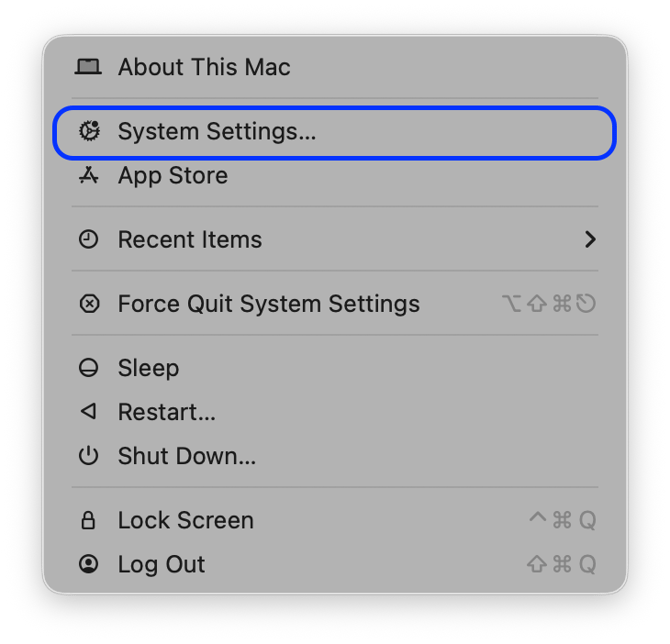
Click the (Apple) menu in the top-left corner of your screen.
Then select “System Settings” (or “System Preferences” depending on your version).
Step 2: Access Privacy Settings
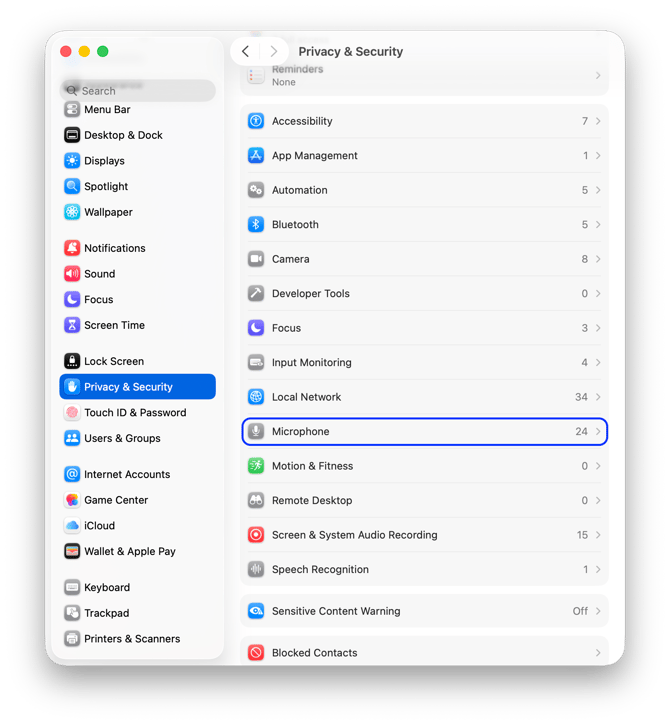
In the menu, click on “Privacy and Security”. Then click Microphone.
Step 3: Allow access to the microphone
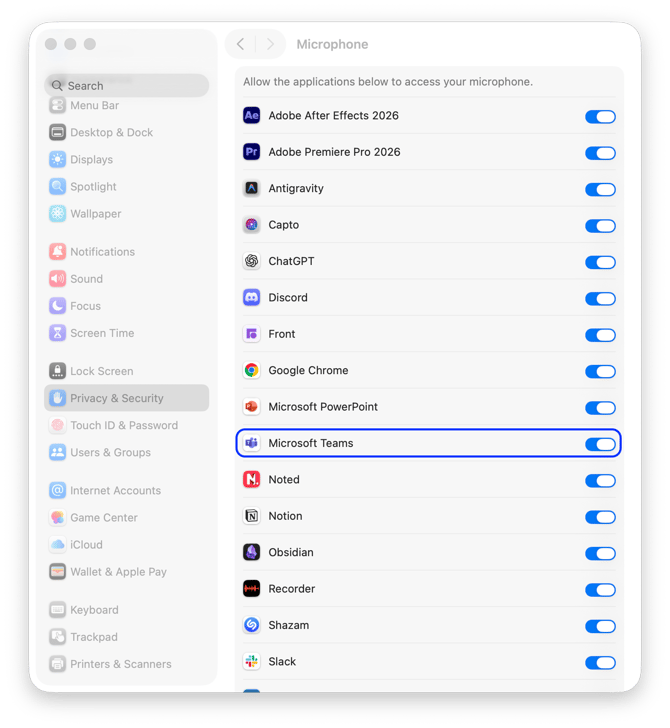
From the list, select “Microphone”.
You will see the apps that request access to the microphone.
Step 4: Restart your session
Once permission is enabled:
- Restart the app.
💡 Also check
- Make sure your microphone is working properly.
- Make sure the correct microphone is selected in your browser or app's audio settings.
👉 Your microphone is now ready to use.
If the problem persists, please feel free to contact support.