![Fifty - Logo&baseline_blackBackground_2023.png]](https://knowledge.fifty.do/hs-fs/hubfs/Fifty%20-%20Logo%26baseline_blackBackground_2023.png?height=50&name=Fifty%20-%20Logo%26baseline_blackBackground_2023.png)
Welcome to your Fifty platform.
Once you log in, you will be taken to your home page, which serves as your dashboard for managing all your activities.
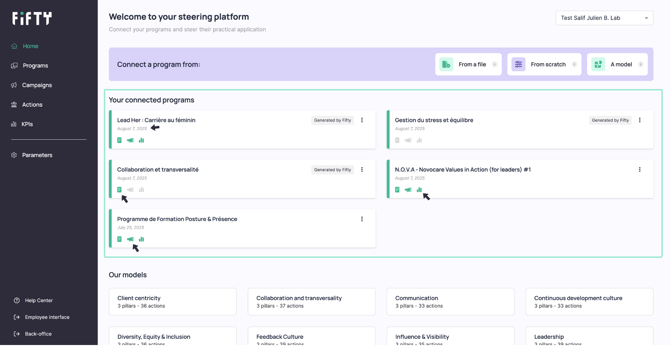
In the ‘Your connected programs’ section
You will find all the programs you have created.
For each one, you will see:
- The creation date,
- A series of pictograms to guide you:
- The action list pictogram indicates that the programme has enough actions to launch a campaign.
- The megaphone icon means that a campaign is currently being deployed.
- The statistics icon informs you that new data is available.
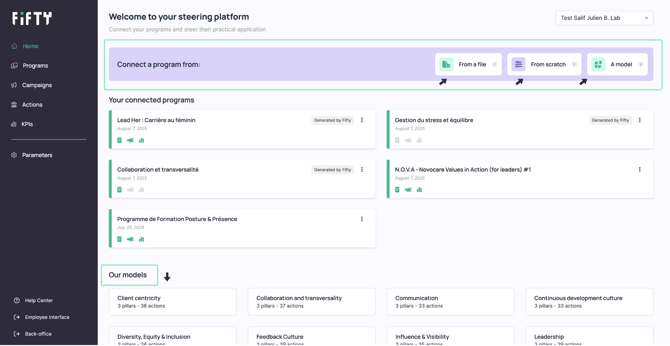
To create a new program
Go to the *‘Connect a program from’ *
You have three options:
- Import a document (PDF, Word or PowerPoint),
- Create a programme from a blank page,
- Or start from one of our pre-designed model.
You will find some templates in the ‘Our models’ section.
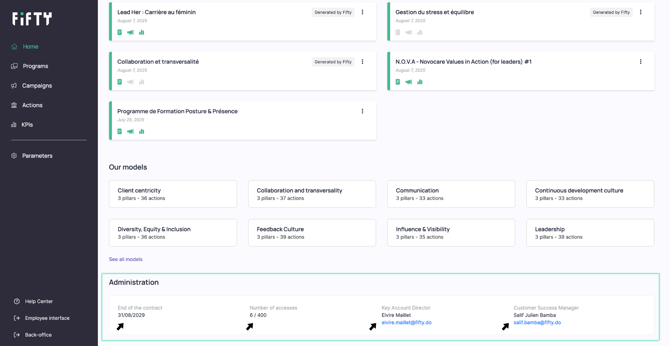
In the Administration section
You can access key information:
- The contract end date,
- The number of licences used (out of the total available),
- Your preferred contacts at Fifty, whom you can contact directly.
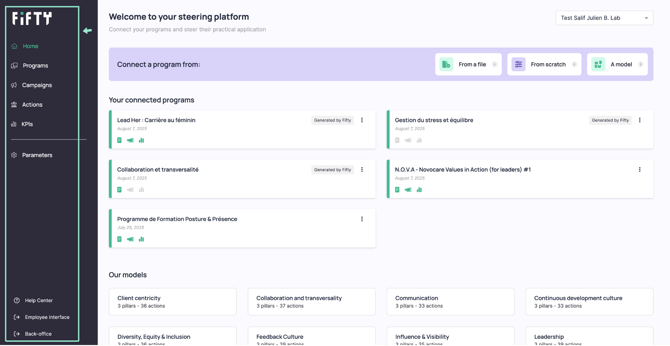
Let's take a quick tour of the platform
In the left-hand column, you will find the main menu, which allows you to easily navigate between the different sections and features of the platform.
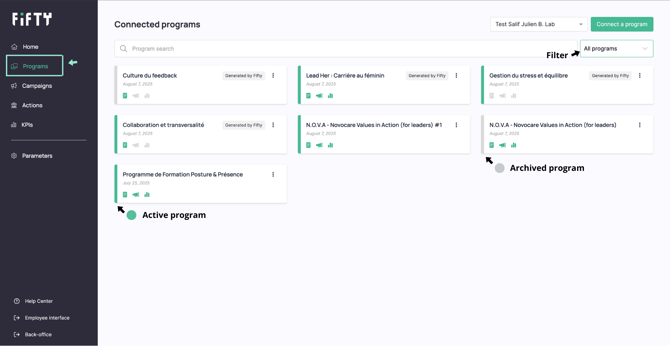
In the ‘Programs’ menu
Here you will find all your connected programs, whether they are active or archived.
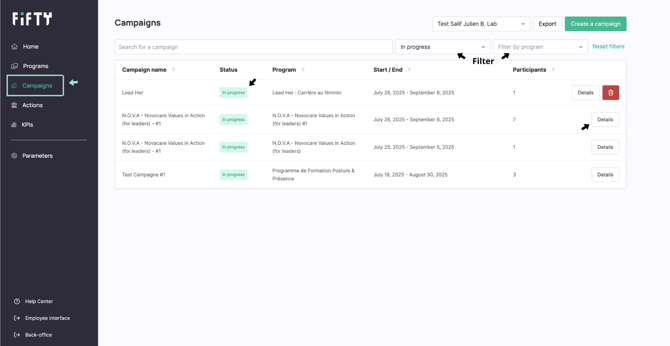
In the ‘Campaigns’ menu
all your campaigns are grouped together:
- Completed
- In progress
- Upcoming
You can filter them by programme for better readability.
By clicking on a campaign, you can access:
- The list of participants,
- Information on whether or not they are connected to the platform (account creation),
- And you can add new participants at any time if necessary.
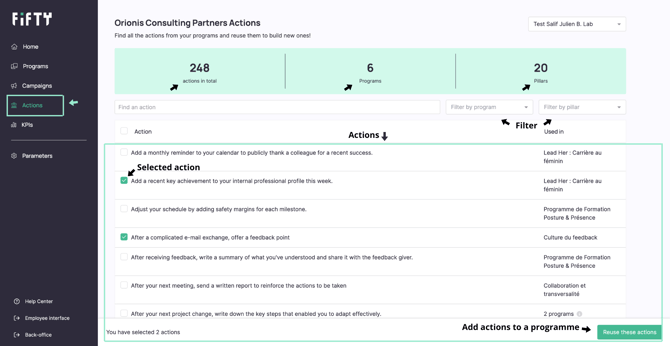
In the ‘Actions’ menu
Here you will find all the actions from all your programmes.
You can:
- Filter actions by programme or by pillar,
- Select the ones that interest you,
- Then choose to add them to an existing programme or create a new programme from this selection.
To do this, simply tick the desired actions and click on ‘Reuse these actions’.
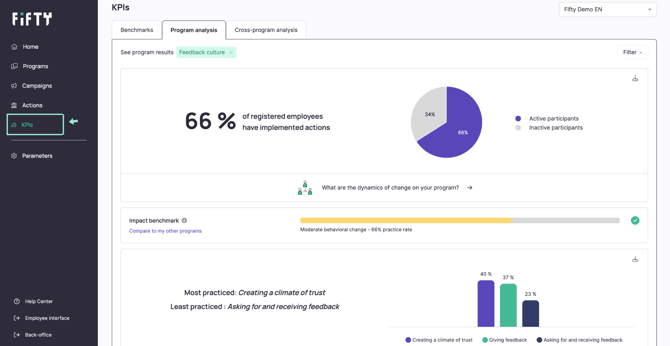
In the ‘KPI’ menu
This space allows you to view the trends and key indicators of your programmes:
- Participation rate,
- Engagement in actions,
- Evolution over time, etc.
In the ‘Parameters’ menu
Here you can access administrative information and management settings:
- Your user profile,
- Your company profile,
- The segmentation of your programmes (by population, country, business unit, etc.),
- And user management: you can modify their access rights or add specific segmentation.
In the ‘Employee interface’ menu
This menu allows you to access the employee area to view the platform as an employee sees it. And not only that, it is also your environment, where you can try out micro-actions, check campaigns or simulate a user experience.
And conversely, from the employee area, you can return to your administrator interface with a single click.